Sunday, June 12, 2011

?m=1 : Shortcut for Blogger blogspot mobile version~

.: I got it all wrong, haha :-D

Previously, I on my quest finding the online version of mobile browser on the internet, but didn't get the correct output. Mobile version of this aiemm blog should appear very simple minimalist and easy to read, like the one you see in this 'Turning on mobile template in Blogger' post. And I thought that when we surf using our mobile browser, any Blogger blogspot should be redirected to the mobile version automatically. But when I try with Opera Mini 6 Mobile, it didn't work the way it suppose to.

This brings out a big bright yellow question mark on my head, what is the problem?
  • I should use mobile browser in my own mobile phone, instead of using online simulators from the internet, or
  • current Blogger template were not made to automatically redirected to the mobile template version yet.. (incomplete HTML formatting?) Or
  • I've used the wrong URL...
Haha, I think I made the last mistake here X-D I didn't notice the URL difference in both online and mobile version of Blogger, so that's why I can't view aiemm the way I want it to be. In order to view the mobile version of Blogger blogspot, what we must do is to open the right blog address (URL)!

Which one and how to get it?

Based on how to turn on mobile template for Blogger post, we need to add ?m=1 at the end of our blog address to view the mobile version of aiemm.
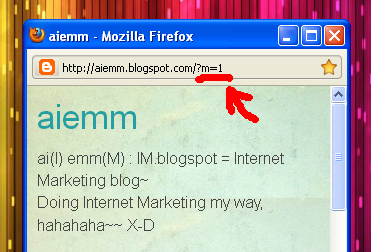
Look closely, and copy that URL parameter and paste it after
typing our full blog address~

Yeahhhh~ Now Aiemm can rocks on both world! X-D

And now I'm done. My quest is complete, and I'm happy :-) :-) :-)

Before I forget, the addition of ?m=1 works with all Blogger blogspot, unless you've already disable the mobile template then this shortcut won't work anymore. Right now I just can't wait for my Simple template in my aiemm to works like in the new Blogger mobile templates~ :-D

I hope I can get my own Apple iPhone so I can experience myself surfing the Net mobile-ly. Need to work more with this affiliates stuff ;-)


aiemm: "Mobile is the new Net - but how about the radiation and cancer?"
:-(
:.

Online Mobile Browser Simulator : Preview your mobile website online~~

.: How to view the mobile version of your Blogger blogspot or your website online? :-?

At this moment, there is no stable and practical online site that can render or browse all internet website like a true mobile phone browser? What I can found is mobile browser emulator, or mobile browser simulator which kinda imitates and behaves like a mobile phone controls with mobile-sized screen.

I know that Blogger blogspot has it's own mobile template, so after activating that template settings I thought it will be a redirect from original internet template into the mobile template automatically. My phone is not configured yet for online browsing (because I prefer texting and calls more), so I like to test this aiemm blogspot and see how the mobile version looks like online. That's why this post come up, I successfully found one simulator that really "works", hee~ ;-)

Before that, I do hope you already installed Java Platform on your computer before you can use this online mobile browser simulator.

dotMobi N70 mobile simulator.
You can choose to use Sony K750 too~

Emulator | dotMobi : The first site I found is the first fail I encounter. Haha, you got me there. It's ok, I will try again~

Test browsing the internet with
your online iPhone~
TestiPhone : Nice Apple iPhone graphic there, but aiemm is not in mobile version. Maybe I got into the wrong website? Because it claims that it is for testing our iPhone web applications. (This website is very similar with this iPhone 3G/4G tester here...)

Simple minimalist TagTag mobile emulator~
TagTag | Mobile site emulator : Embed TagTag Emulator on my blog? Eh?? Nope, TagTag didn't work like what I was hoping before. Did I do something wrong here? Aiemm URL is correct, so what is the problem?

Opera Mini 6 - built for smartphones
with large screen.
Opera Mini simulator : This one is the "working" mobile browser simulator I mentioned before. It was funny looking at those lines which represents the text on my blog, but if you click on it, it will automatically enlarge the "lines" into an actual text. It's good to see it like this, but this type of mobile browser is best for touchscreen smartphones. If Opera Mini can wrap the texts to fit the screen, then all mobile phone can view it without needing to scroll to the left or to the right. And this will helps ease the eyes when we reads it ;-)

Text gets enlarged when you "click".

They also have the old version :
Opera Mini simulator version 4.2~

I am still not satisfied with all my findings here. The mobile version should be very minimalistically designed and easy on the eyes. Wait, is it because of the...

Further mobile reading:


aiemm: "Why must we care about our Blogger blogspot going mobile?"
Internet marketing goes all the way beyond our computer, and going mobile is a must because the total number of mobile phones exceeds the total number of PCs + laptops + netbooks in the world~~
:-O
:.

Wednesday, April 13, 2011

To LinkWithin or not to LinkWithin?

.: I sometimes envy with other self-hosted WordPress blogs out there - they had the best plugins and widgets! :-(

One example of widget that is very useful for any Blogger blog is the related post widget. Why we need to have this widget? This is because:
  • it increases our pageviews, where our readers will keep reading and browsing other posts after finish reading one.
  • it's indirectly help our readers search or find other related post from our blog. 
  • blog with related posts looks so "advanced", thus making other blogger envy with our blog and want to have one too~ Lol~

Before this there is no official gadget made by Blogger and many have to use complicated hacked Blogger HTML script if they want to enable this related post widget, like you can see in this BloggerPlugins and JackBook example. This continue to haunts many tech-savvy blogger out there until this one site offers an easy and simple way to set up a related post widget in their Blogger blog - plus it comes with thumbnails too!~ :-)

LinkWithin, the Blogger savior is a free widget that appears under every post we had in our blog, and it links to related stories from our blog archive. The best part is it shows the image thumbnails too, so it is recommended to put at least one picture in every post we write because this picture will become the widget thumbnail.

LinkWithin works by retrieving and indexing all posts from our blog in their server, and later show them in the Blogger widget. Related posts is chosen from their title relevance, tags and their content. In my personal blog, LinkWithin shows related posts according to it's popularity - the most popular post is always shown rather than not-so-popular post. But this don't happens regularly, hurmmm.. :-?

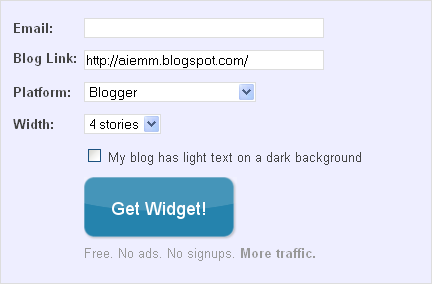
To install this LinkWithin widget, we need to register our blog with them first. Write down our e-mail and our blog URL too. Choose Blogger as our platform (and you can choose other platform too), and then choose how many stories or related posts you want to appear in your widget. You should tick the empty box if your blog has dark background.

LinkWithin blog registration.

You should see a page similar to the picture below, and click the blue 'Install Widget' link to import LinkWithin into our blog.

Click 'Install Widget' and it will open a new window/tab.

Choose our desired blog, and click the blue 'Add widget' button.

Select the desired blog, and the title can be renamed too.

Now our blog has been related-posts-enabled~ Yeahhh, rejoice~~ :-D If you would like to see how LinkWithin work, you can see example of it under this post ;-)


aiemm: "How to persuade our readers to read more of our blog?"
;-)
:.

Sunday, March 20, 2011

How to always found the correct results when you search on Google?

Google search engine.
The 'G'.
.: Google is a search engine where it receive a zillion searches by it's users. And we know that when we type something, we will always find our answers there. But sometimes our search results didn't show us what we're looking for, or worst there is no any search results there. Why? Why typing inside Google return no matched results?

It's because we didn't search it the correct way. Puzzled? Let's take a look at it like this:
  • Search engine is made based on mathematical formula with human logic, in other words it's just a machine.
  • When we enter our queries into them, this machine searched for it in their enormous internet database and later matched it with "the-most-related-thing-with-90%-accuracy" and then show it as our search results.
  • Because it's a machine (that is made by human, and human always make errors), when our searches somehow didn't match with the machine database, so no results is shown.
  • But that machine somehow can give us other related results so we won't get upset. This is the case where we get unwanted search results. (Especially when you search using your native language other than English)
  • In order to get best result, we need to craft our search techniques so it will always matched the machine database.
So, correct search queries (or techniques) -> leads to correct search results.

From my own experience, there are 3 different searching techniques available:
  1. Normal search done from Google search page.
  2. Quick and easy search by using Google explore shortcuts.
  3. Advanced Google search for finding specific queries.

The first type is the simplest way of doing information searches, just type in the textbox, press Enter and we're done. The second one was the special search shortcut made by Google for us (you can read this in our previous post). And the last one is the advanced search, where our search queries is searched deeeeeep inside the database itself. Haaa...  ;-)

This 3 help articles can explain it better:
  1. Google search basics: Here they explain how to craft our search queries. (Must read and understand!)
  2. Google search basics (extended): I love this technique. This help me filter my searches into specific results~
  3. Advanced operators: This article is more about being a Google detective. We may need and use this search techniques later~ 

Now we know how to always found the correct search results, so we should use it starting today. Or start using it now. Practice with the search basics is good enough, because from there we can get to know and feel how our "future audience" do their searches. Heehee~  ;-)


aiemm: "Note: this searching techniques may or may not be that helpful with our local search..."
:-|
:.

Saturday, March 5, 2011

Time-saving search: Your daily Google shortcut~

.: Do you know how to save your extra minutes used for doing searches on Google? Believe it or not, our googling activity would not consume too much time if we know how to search it the Google way. Eh, Google way of searching?  :-?

Sometimes we need to do some unit conversion or we need to check the meaning of certain words. Usually we do this by using scientific calculator and choose the mode for unit conversion, or by referring to a dictionary to look up the meaning of a word. Actually, all this hassle can be avoided by searching it with Google.

From weather forecasts, currency conversion, online dictionary, sport scores, mortgage rates, all this 19 intelligent search shortcuts is available for us to use. By typing the correct keyword, this features will appear without us need to log in with Google accounts~

Google Dictionary shortcut.

Google Fill in the Blank shortcut.

Google Calculator shortcut.

Google Unit Conversion shortcut.

Google Currency Conversion shortcut.

I usually use the first 4 Google search shortcut for my research. Test it for yourself, and you can view all of them here at Explore Google Search shortcuts~

Do want to see this shortcuts in action?  ;-)

Healthy Habits

New Baby

Father and Daughter

Creative story-telling right? Heehee :-)

For more searching stories, visit Google Search Stories on YouTube, and don't forget to do your web search homework here on Google too~


***** UPDATE Nov 10th, 2011 *****
Link to more and more Google Shortcut Search here~~
*******************************

aiemm: "Err.. some of their shortcuts is no longer working. I've used the movies shortcut before but it won't work..."
:.

Wednesday, March 2, 2011

How to add your site into Google Webmaster Tools?

.: First thing first, if you're already using Blogger blogspot, registering your blogs with Google Webmaster is super easy. Once you've created your blog, they will ask you whether to add it automatically to their Webmaster Tool or not. But if you're not using Blogger blogspot, or you've missed the automatically 'add your blog' option, you might need to do it yourself.

Below is an example how to add a site (Blogger) into Google Webmaster manually:

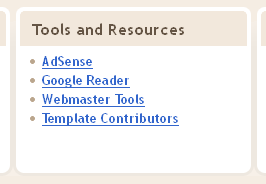
1. From our Blogger Dashboard, scroll downwards and look for Other Stuff > Tools and Resources. Click on the Webmaster Tools link.

This tools is in the middle, between Mobile Devices and Help Resources.

2. Click on the 'Add a site' button, and type in our full URL address of our blog.

Whose blog is that? Haaa.. :-P

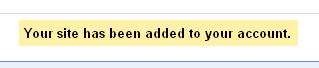
3. One yellow notification will appear on top if our blog addition process is successful.

It usually will look like this one..

4. Do not worry if our stats and analytic is empty. Give it about two or three days to see it starts kicking~

Newly added Aiemm blog in Google Webmaster Tools.

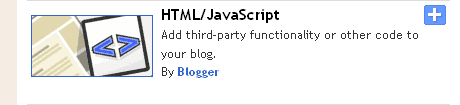
In case they need you to put some HTML code into your blog to make this Webmaster Tools work, what you need to is go to your Blogger Design tab > Page Elements > click Add a Gadget in the design area > and choose to add HTML / JavaScript > and paste your given HTML code there. Now your blog is ready to run the Google Webmaster Tools~

Add this element to paste in your HTML codes given~

If you need help adding a site or need to read more about this Webmaster tools, please refer more to Webmaster Tools Help~


aiemm: "To manage a lot of blog is not an easy task. Commitment. Responsibility."
:.

Google Webmaster vacancy: Open to all bloggers out there~

Google Webmaster Tool logo?
.: Ya ya yaa~ :-P

(Disclaimer: I'm not one of the googler, and this post is not from their human resource either. I'm just letting you know that this Webmaster post is still open until today~)

What is Google Webmaster?
Webmaster : The person who is responsible for designing or managing a website.

So, a Google Webmaster is : An opportunity to let internet marketers or ordinary blogger feels the Google's hardship when designing or managing their blogs and websites. LOL~  :-P

If you become one of their webmaster, you will gain access to their most powerful tools, the Google Webmaster Tool. Their most powerful tools?

Google Webmaster Tools

While originally this tools is used for helping our website or blogs to definitely appears in Google SERP, as an internet marketer this tools can help to amplify our site conversions from much more precise and better targeting.

Things inside Webmaster tools can help us as an internet marketer:
  • Settings : I like this the most because I can make my blog to be specifically shown to users from my preferred geographic target (Talking about localization). Leave it unchanged if you don't wish to do geo-targeting.
  • Search queries : Now we can know which searched queries that bring our readers to our blog. Because that keyword is what we're known for~ 
  • Links to your site : How many times our blog is linked, plus the 'Your most linked content' can shows us which blog post gets the most attention. (That's why they link it to us).
  • Keywords : This is a list of commonly found keywords written in our blog. If our blog specialize in listing eating places, our most common keywords should be related to "eateries", not other keywords than that.. 
  • Malware : This one special tools is able to tell if our blog is infected by malwares so action can be taken to fix it.. X-O  

In their 2010 SEO video, this malware detection tool has been told to public. This tool is extremely important when we use self-hosted WordPress as our site. Because sometimes we never know why users cannot access to our site (because it was blocked by Firefox when they try to open it), so this tool can help us to check it out. I wonder if there is other way to check malware infected sites for free?  :-?

One more thing before we apply for this webmaster post - today I read about niche making challenge and one advice I've learn there is to not using Google webmaster tool at all. This is because that once you reach the $100/day mark from your Adsense income, you'll face the de-indexing thing... urmmmm... :-(
(This statement is still doubtful. But you can get the point.)

I thought if we play by the rules, nothing bad will happen.. :-(

So, it is up to you whether you want to apply for this webmaster post or not. I just want to try and look how this tool can help me or not. After I had that $100/day, I will think again about using other options to manage my blogs.

For further reading (and watching):


aiemm: "Why we need to be a webmaster in the first place?"
:.
Related Posts Plugin for WordPress, Blogger...